> ## Documentation Index
> Fetch the complete documentation index at: https://docs.coconut.dev/llms.txt
> Use this file to discover all available pages before exploring further.
# Code
> Build with Coconut
Coding is a first-class feature of Coconut Studio that leverages coding agents (such as [Claude Code](https://claude.com/product/claude-code) or [OpenAI Codex](https://developers.openai.com/codex/cli)) to build software and carry out more sophisticated, long-running tasks.
You can also combine it with [custom skills](/studio/skills) and MCP servers to unlock even more capabilities and integrations with third-party tools and services.
## Code from tasks
[Tasks](/studio/tasks) are the most structured way to initiate a coding agent session. You start by creating a task, optionally ask the agent to assess it for readiness, and then click "Start Task".
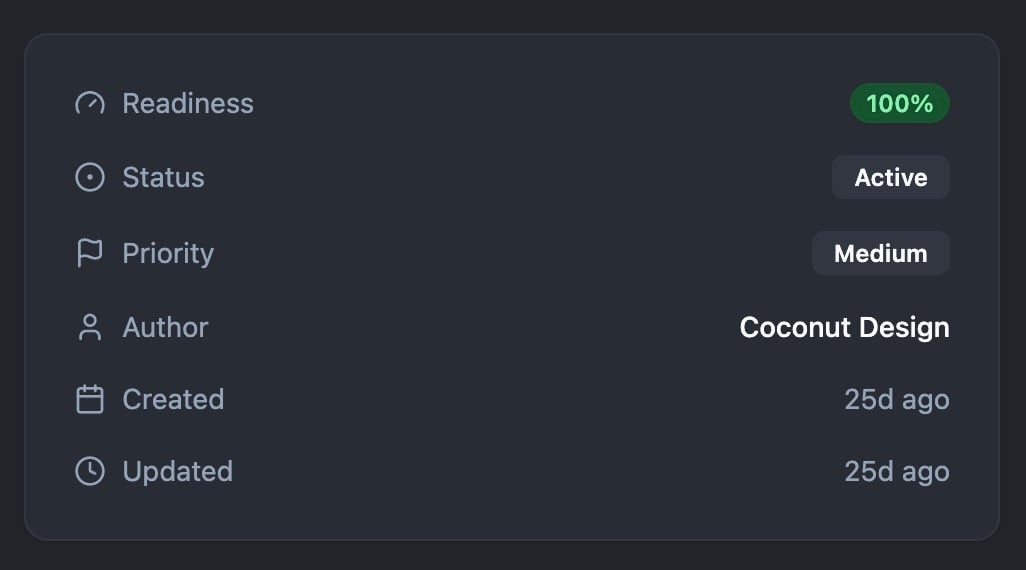
 If you assess tasks for readiness, you will see a readiness score displayed at the top of the task metadata:
 From there, configure the coding session with the following options:
* **Coding Agent** - Choice of coding agent such as Claude Code or OpenAI Codex
* **Custom Skills** - Any optional [skills](/studio/skills)
* **MCP Servers** - Any optional MCP servers
* **Additional instructions** - Additional instructions that aren't included in the task itself
* **Full environment access** - Whether the agent should run with full access to the environment and without the need to ask for any permissions before making changes
* **Branch Management** - Choice of where to make the changes (e.g. current branch, new branch or worktree)
Ensure the necessary API keys are configured for your selected coding agent.
Click "Start Task" to launch the agent and begin the session.
## Interactive coding
Interactive coding uses a similar approach but without a structured task, so you interact with the coding agent directly.
From there, configure the coding session with the following options:
* **Coding Agent** - Choice of coding agent such as Claude Code or OpenAI Codex
* **Custom Skills** - Any optional [skills](/studio/skills)
* **MCP Servers** - Any optional MCP servers
* **Additional instructions** - Additional instructions that aren't included in the task itself
* **Full environment access** - Whether the agent should run with full access to the environment and without the need to ask for any permissions before making changes
* **Branch Management** - Choice of where to make the changes (e.g. current branch, new branch or worktree)
Ensure the necessary API keys are configured for your selected coding agent.
Click "Start Task" to launch the agent and begin the session.
## Interactive coding
Interactive coding uses a similar approach but without a structured task, so you interact with the coding agent directly.
 This allows you to run sessions in the same way you would on your local machine, with added collaboration and security benefits.
If you are running a web-based development server, you can open ports from the Coconut Dashboard.
This allows you to run sessions in the same way you would on your local machine, with added collaboration and security benefits.
If you are running a web-based development server, you can open ports from the Coconut Dashboard.