> ## Documentation Index
> Fetch the complete documentation index at: https://docs.coconut.dev/llms.txt
> Use this file to discover all available pages before exploring further.
# Terminal
> Use Coconut's built-in terminal
Coconut has a fully featured terminal built right in. This allows you to do all the things you might typically do locally, such as run a development server, execute scripts, and use [TUI-based](https://en.wikipedia.org/wiki/Text-based_user_interface) coding agents such as Claude Code or OpenAI Codex.
For power users this also provides direct access to the underlying file system and built-in commands.
## Starting and managing sessions
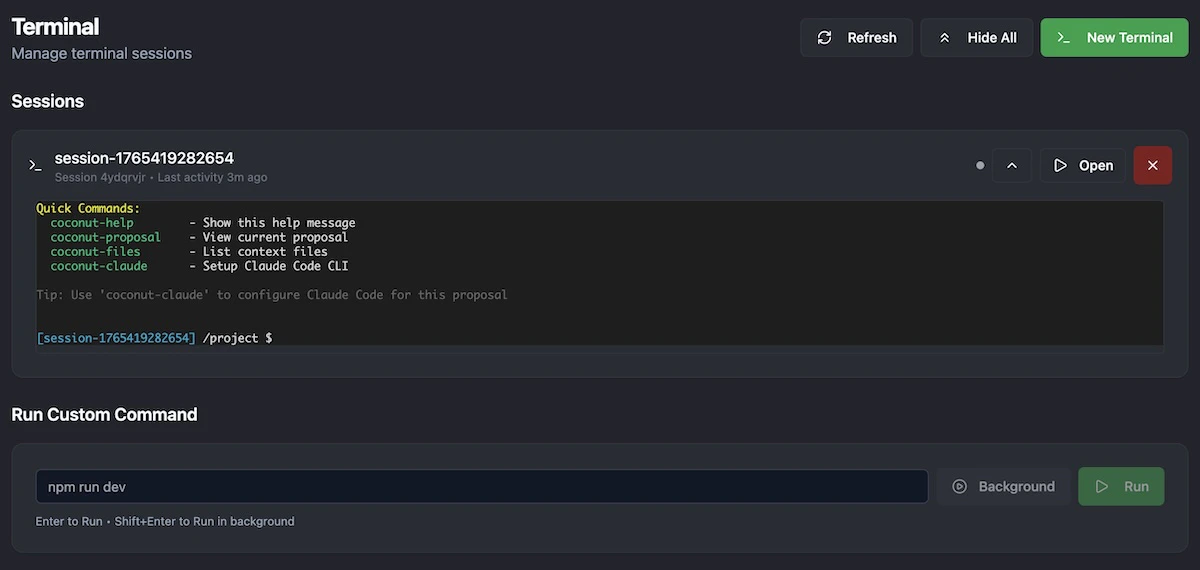
From within the "Terminal" section of the left-hand navigation you can both start new terminal instances (via the "New Terminal" button) and view all currently open sessions.
 ## Running custom commands
You can also launch custom commands (such as starting a development server) straight from this screen via the "Run Custom Commands" section.
## Running custom commands
You can also launch custom commands (such as starting a development server) straight from this screen via the "Run Custom Commands" section.