> ## Documentation Index
> Fetch the complete documentation index at: https://docs.coconut.dev/llms.txt
> Use this file to discover all available pages before exploring further.

# Resource Generation

> Generate compelling images, audio and video assets on-demand

export const ImageComparisonSlider = ({leftImage, rightImage}) => {
  const [sliderPosition, setSliderPosition] = useState(50);
  const [isDragging, setIsDragging] = useState(false);
  const [hasInteracted, setHasInteracted] = useState(false);
  const containerRef = useRef(null);
  const animationFrameRef = useRef();
  const handleMove = clientX => {
    if (!containerRef.current) return;
    const rect = containerRef.current.getBoundingClientRect();
    const x = clientX - rect.left;
    const percentage = x / rect.width * 100;
    const clampedPercentage = Math.min(Math.max(percentage, 0), 100);
    setSliderPosition(clampedPercentage);
  };
  const handleMouseMove = e => {
    if (!isDragging) return;
    handleMove(e.clientX);
  };
  const handleTouchMove = e => {
    if (!isDragging) return;
    handleMove(e.touches[0].clientX);
  };
  const handleStart = () => {
    setIsDragging(true);
    setHasInteracted(true);
    if (animationFrameRef.current) {
      cancelAnimationFrame(animationFrameRef.current);
    }
  };
  const handleEnd = () => {
    setIsDragging(false);
  };
  useEffect(() => {
    if (isDragging) {
      window.addEventListener("mousemove", handleMouseMove);
      window.addEventListener("mouseup", handleEnd);
      window.addEventListener("touchmove", handleTouchMove);
      window.addEventListener("touchend", handleEnd);
      return () => {
        window.removeEventListener("mousemove", handleMouseMove);
        window.removeEventListener("mouseup", handleEnd);
        window.removeEventListener("touchmove", handleTouchMove);
        window.removeEventListener("touchend", handleEnd);
      };
    }
  }, [isDragging]);
  const easeInOutBack = t => {
    const c1 = 1.70158;
    const c2 = c1 * 1.525;
    return t < 0.5 ? Math.pow(2 * t, 2) * ((c2 + 1) * 2 * t - c2) / 2 : (Math.pow(2 * t - 2, 2) * ((c2 + 1) * (t * 2 - 2) + c2) + 2) / 2;
  };
  useEffect(() => {
    if (hasInteracted) return;
    const duration = 3000;
    const startTime = Date.now();
    const animate = () => {
      const elapsed = Date.now() - startTime;
      const progress = elapsed % duration / duration;
      let position;
      if (progress < 0.5) {
        const t = progress * 2;
        const eased = easeInOutBack(t);
        position = 50 + eased * 20;
      } else {
        const t = (progress - 0.5) * 2;
        const eased = easeInOutBack(t);
        position = 70 - eased * 20;
      }
      setSliderPosition(position);
      animationFrameRef.current = requestAnimationFrame(animate);
    };
    animationFrameRef.current = requestAnimationFrame(animate);
    return () => {
      if (animationFrameRef.current) {
        cancelAnimationFrame(animationFrameRef.current);
      }
    };
  }, [hasInteracted]);
  return <div ref={containerRef} className="relative w-full max-w-4xl aspect-[4/3] overflow-hidden rounded-lg shadow-2xl select-none border-2 border-primary" onMouseDown={handleStart} onTouchStart={handleStart}>
      {}
      <div className="absolute inset-0">
        <img src={rightImage} alt="After" className="block w-full h-full object-cover" style={{
    margin: 0,
    padding: 0
  }} />
      </div>

      {}
      <div className="absolute inset-0" style={{
    clipPath: `inset(0 ${100 - sliderPosition}% 0 0)`
  }}>
        <img src={leftImage} alt="Before" className="block w-full h-full object-cover" style={{
    margin: 0,
    padding: 0
  }} />
      </div>

      {}
      <div className="absolute top-0 bottom-0 cursor-ew-resize" style={{
    left: `${sliderPosition}%`,
    transform: "translateX(-50%)"
  }}>
        {}
        <div className="absolute left-1/2 -translate-x-1/2 w-0.5 bg-primary" style={{
    top: 0,
    height: "calc(50% - 24px)"
  }} />
        
        {}
        <div className="absolute left-1/2 -translate-x-1/2 w-0.5 bg-primary" style={{
    bottom: 0,
    height: "calc(50% - 24px)"
  }} />
        
        {}
        <div className="absolute top-1/2 left-1/2 -translate-x-1/2 -translate-y-1/2 w-12 h-12 bg-primary rounded-full shadow-lg flex items-center justify-center">
          <svg xmlns="http://www.w3.org/2000/svg" width="24" height="24" viewBox="0 0 24 24" fill="none" stroke="currentColor" strokeWidth="2" strokeLinecap="round" strokeLinejoin="round" className="w-6 h-6 text-white">
            <polyline points="18 8 22 12 18 16" />
            <polyline points="6 8 2 12 6 16" />
            <line x1="2" x2="22" y1="12" y2="12" />
          </svg>
        </div>
      </div>
    </div>;
};

<ImageComparisonSlider leftImage="/images/resource-generation-left.jpg" rightImage="/images/resource-generation-right.jpg" />

## Choose a resource type

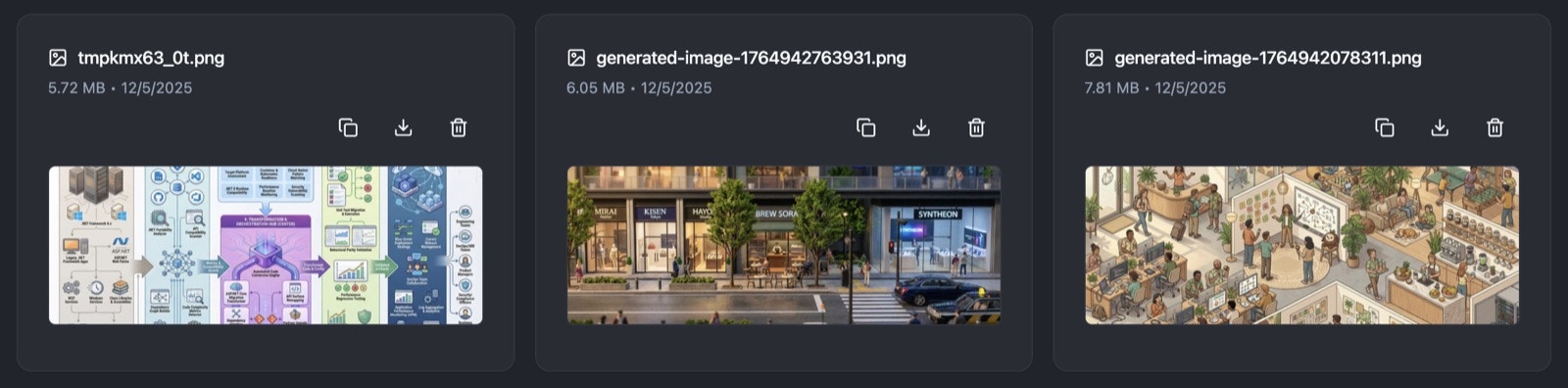
Coconut has support for all the major resource types (images, audio, and video) that can be generated on-demand and integrated directly back into your workflows and agent-based loops.

A simple example of this might be a collection of images that can be passed to a coding agent to integrate them into your website.

<img src="https://mintcdn.com/coconut-a01d759b/rNrv-rCTowpTUWbn/images/coconut-example-images.jpg?fit=max&auto=format&n=rNrv-rCTowpTUWbn&q=85&s=0ebc69c90839558e22e918d2b663fc88" alt="coconut example images" width="1600" height="396" data-path="images/coconut-example-images.jpg" />

### Prompt Library

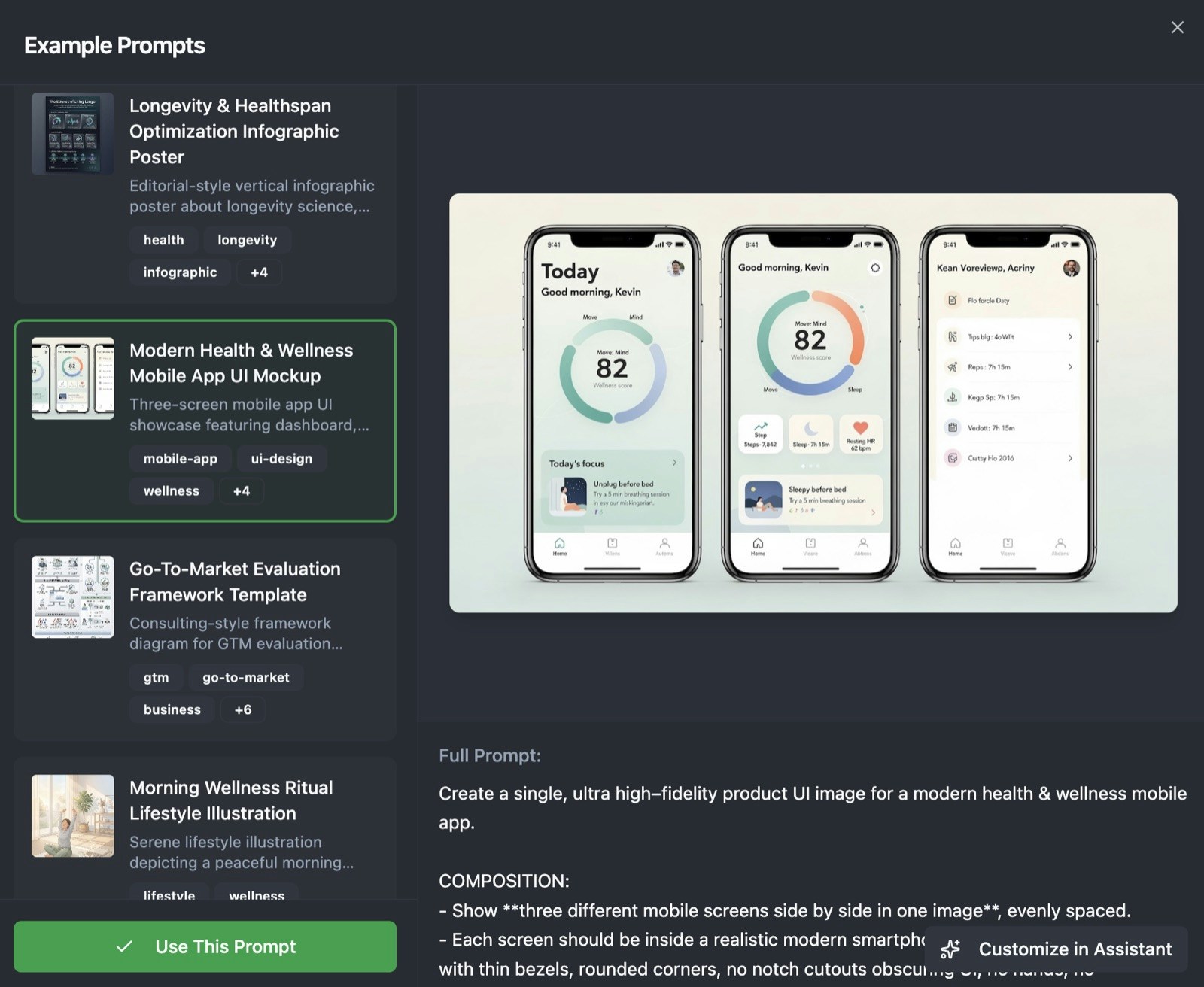
A comprehensive example prompt library is available that you can use and adapt to generate similar assets.

<img src="https://mintcdn.com/coconut-a01d759b/rNrv-rCTowpTUWbn/images/example-prompts.jpg?fit=max&auto=format&n=rNrv-rCTowpTUWbn&q=85&s=65889fc69ba417e4994a405b2263633d" alt="Example prompts" width="1600" height="1312" data-path="images/example-prompts.jpg" />

<Tip>
  Use **Customize in Assistant** in the bottom-right to tailor the prompt with the built-in Coconut Assistant.
</Tip>

## Passing resources to a coding agent

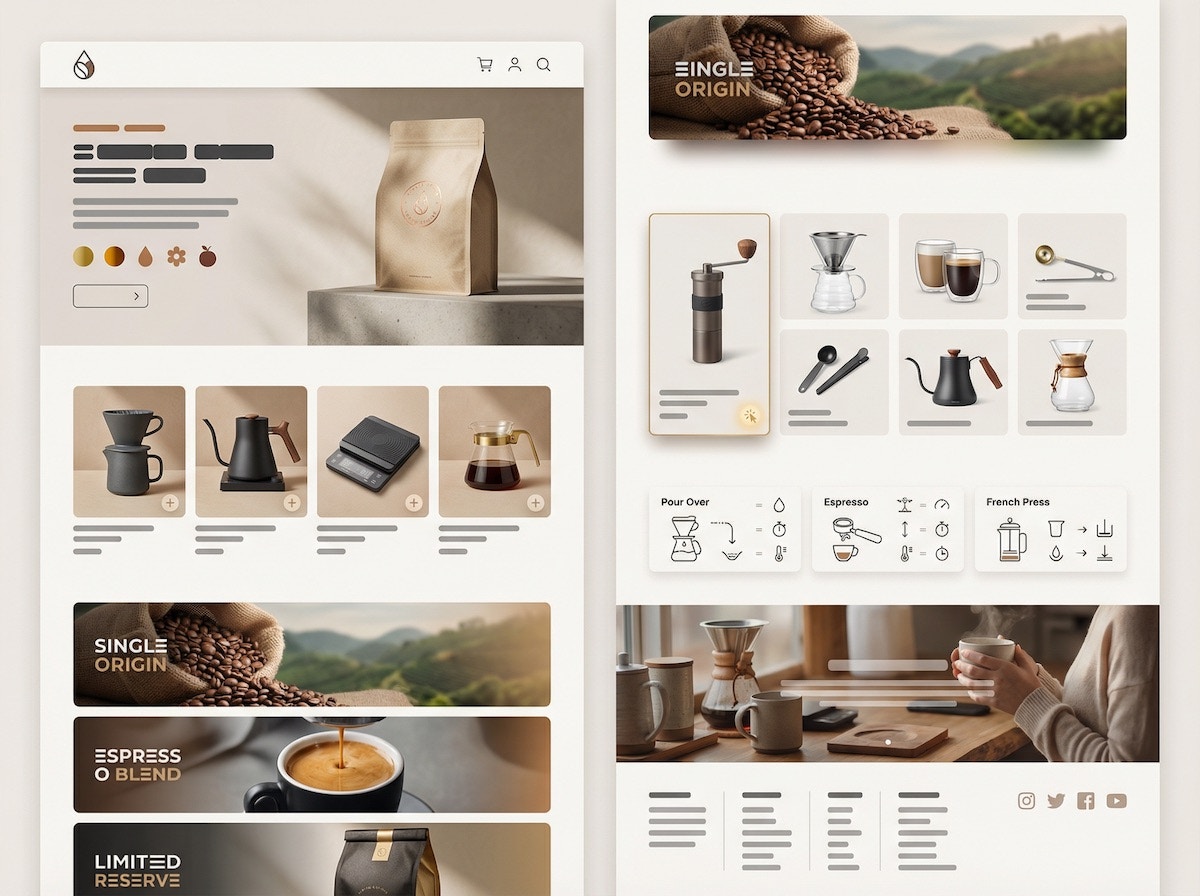
Taking the earlier example further, it's now possible to generate complete visual mockups using an image generation agent and have a coding agent actually build them.

<Tip>
  The [Playwright MCP server](https://github.com/microsoft/playwright-mcp) adds a powerful dimension to this by allowing the coding agent to "headlessly" view the website or web-based application as it's building it to directly compare it to the design mockups provided.
</Tip>

Here's an example prompt you can pair with the image below:

> Adapt this image into an e-commerce store selling Tamagotchis

<img src="https://mintcdn.com/coconut-a01d759b/rNrv-rCTowpTUWbn/images/coffee-mock.jpg?fit=max&auto=format&n=rNrv-rCTowpTUWbn&q=85&s=363a5bc1d4813e3d6217fc7fbd446a26" alt="coffee mockup" width="1200" height="896" data-path="images/coffee-mock.jpg" />

This can then be passed to a coding agent (such as Claude Code for implementation).

## Audio and Video Generation

Coconut also supports audio (voice) and video generation via state-of-the-art models such as Google's [Nano Banana Pro](https://gemini.google/overview/image-generation/). As with images, these assets live inside the Coconut and can be used within any other agent-based loops or workflows.
<iframe src="https://www.youtube.com/embed/Kv4PVjwwIfY" title="YouTube video player" frameBorder="0" allow="accelerometer; autoplay; clipboard-write; encrypted-media; gyroscope; picture-in-picture" allowFullScreen style={{ width: '100%', borderRadius: '0.5rem' }} />